BURNING
BRIDGES AI

YOUR PHOTO. THE AFTERPARTY.

Burning Bridges AI Video Studio

Plan your Burning Bridges AI video from one photo. Explore three party-inspired visual directions, preview your image, and choose a proposed clip length in the studio below.

Interactive preview only. Your photo stays in this browser; video generation is not available yet.

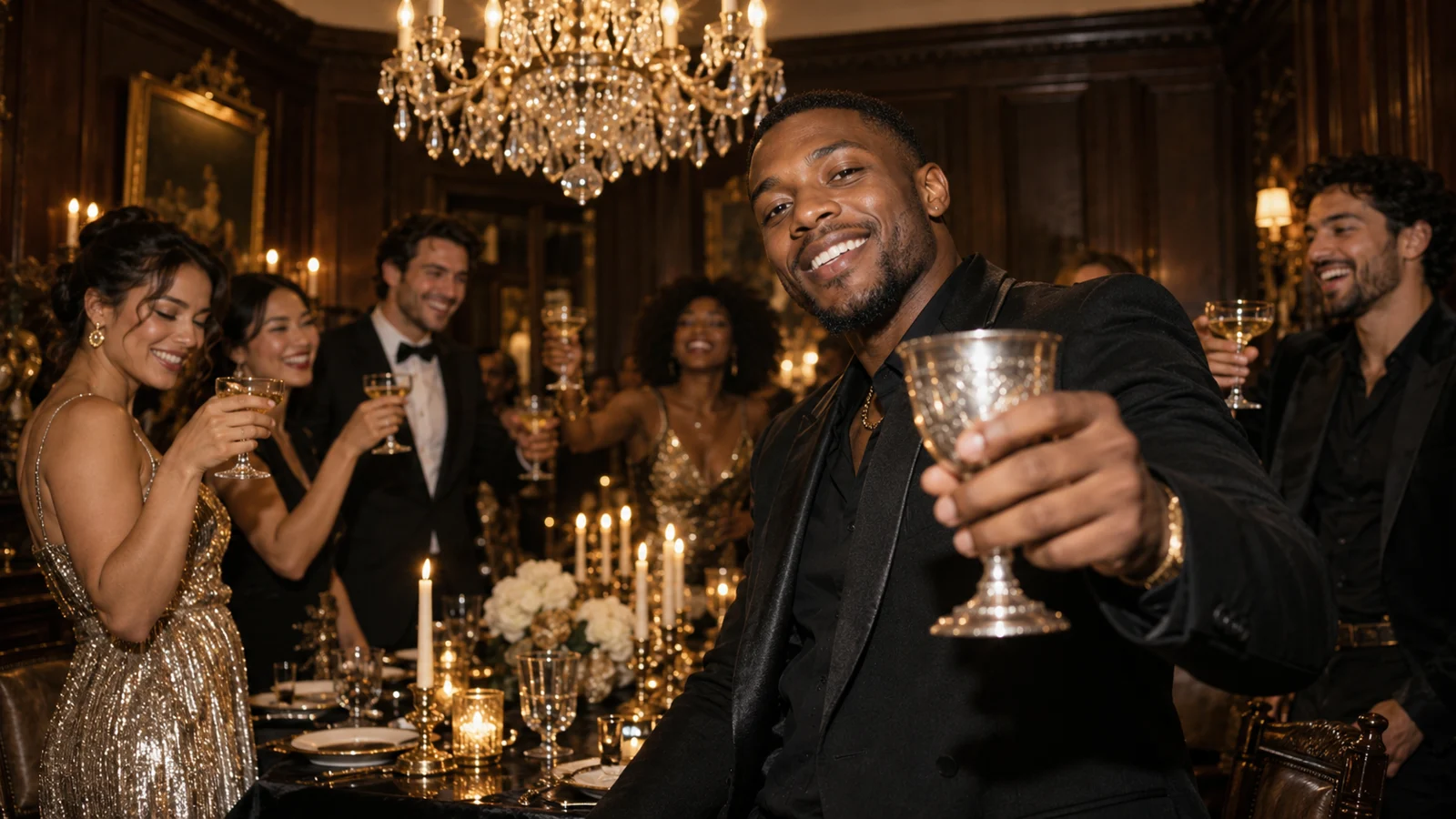
Burning Bridges AI video concept: a chandelier party with a man raising a silver cup
AI-created concept image. A visual direction, not a generated video.

THE STUDIO

Preview your photo in the video studio

Choose a photo, compare party moods, and review a scene setup without uploading your image.

Interactive preview

Your photo stays in this browser during preview.

Set the mood
Clip length

Preview mode. Video generation is not open yet.

Start with a clear photo of yourself or an adult who has agreed to appear. Choose a JPG, PNG or WebP file up to 5 MB. The studio displays your image locally so you can check which photo you want to use before selecting a mood.

Choose House Party, After Dark or Vintage Night, then select six or ten seconds. These controls let you explore a proposed scene setup. They do not start a render or change your photo into a video during this preview.

Before opening the scene summary, confirm that you have permission to use the image and that everyone pictured is an adult. You can replace or remove the photo at any point. The summary shows your selected style and duration, together with a reminder that generation is not available yet.

FIND YOUR MOOD

Choose a party style for your photo

Compare three creative directions for a photo-inspired party video. These images are concepts, not generated video results.

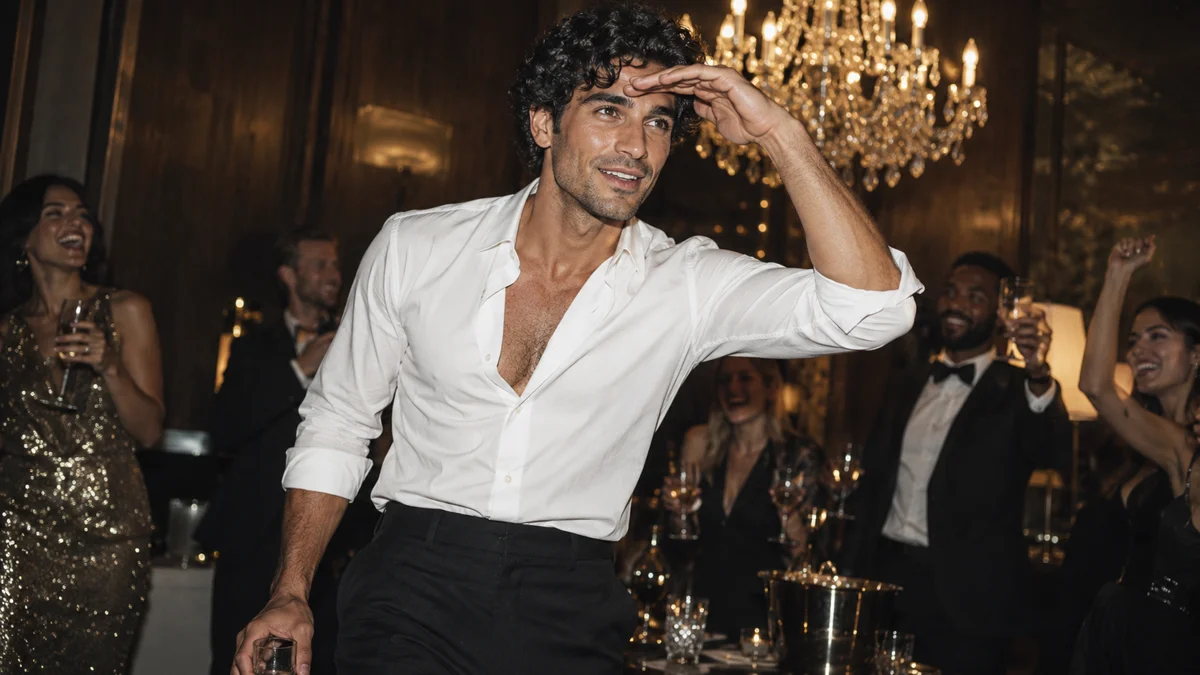
House Party: warm light and a lively room

Concept direction

House Party: warm light and a lively room

House Party explores the contrast between a familiar face and a dressed-up setting. Think warm light, dark wood, a chandelier overhead and friends gathered close to the camera. A clear portrait with your outfit visible gives you a useful starting point for this direction. The accompanying image is a concept illustration, not a promise about the room, people or movement in a future result.

Preview this party style
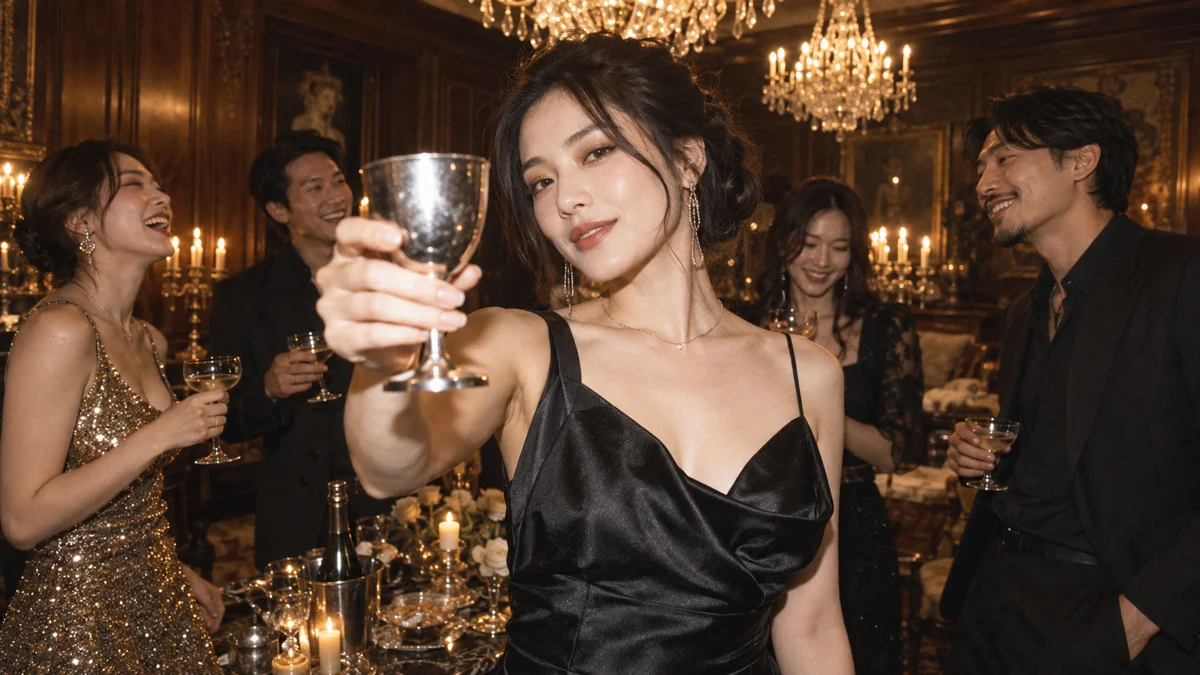
After Dark: direct flash and a closer frame

Concept direction

After Dark: direct flash and a closer frame

After Dark takes its visual cues from candid evening photography. Stronger flash, a closer camera position and a more spontaneous pose suggest a different energy from the warmer house-party look. Try comparing two photos with different expressions in the local preview. The style selection records your preference; it does not currently apply an effect to your image.

Preview this party style
Vintage Night: amber tones and a film-inspired mood

Concept direction

Vintage Night: amber tones and a film-inspired mood

Vintage Night explores softer color, amber lighting and the texture associated with film photography. It may suit a more understated portrait or an outfit with simple shapes. Compare the concept image with the other directions to decide which atmosphere fits your idea. The preview does not add film grain, alter colors or generate movement in the photo you selected.

Preview this party style

FROM PHOTO TO PARTY

From a photo to a party scene: the workflow

Bring a photo

First, inspect your photo in the studio. Check the face, expression and clothing rather than judging only the background. Replace the image if a different angle represents the person more clearly.

Direct the night

Next, select a visual direction and a proposed duration. The six-second and ten-second choices describe the length you would like to explore. They are not delivery guarantees, and choosing a longer setting does not currently create additional frames.

Make it move

Finally, open the scene summary to review the setup. In this release, that summary is the end of the interactive workflow. There is no render queue, generated MP4 or video download. When real generation becomes available, the page will need to explain processing, output options and any cost before you submit a photo to an AI service.

What is a Burning Bridges AI video?

Here, a Burning Bridges AI video means a short, photo-inspired party scene built around a recognizable lead character. The visual direction combines a crowded room, warm chandelier light, expressive camera framing and an afterparty atmosphere. The starting idea is personal: someone familiar becomes the center of the scene.

Our planned workflow uses a photo to guide an original AI-created scene. It is different from simply trimming an existing clip or placing a portrait over a fixed background. The setting, movement and likeness would need to be produced together, and results would need to be checked before sharing.

The current studio lets you explore the photo and style choices behind that workflow. It does not replace a person inside an existing music video, reproduce an exact performance or supply a licensed soundtrack. This is an independent project with no artist endorsement.

How to prepare a photo for an AI party video

Choose a photo with one clearly visible adult, good lighting and an unobstructed face. A head-and-shoulders image makes facial details easier to inspect, while a waist-up portrait also shows clothing and posture. Pick the framing that communicates the look you want to carry into a future scene.

Avoid heavy blur, very dark shadows and filters that hide important features. Sunglasses, hands across the face and tightly cropped heads can also make a photo harder to interpret. If you are starting from a group photo, prepare a separate crop of the person who has agreed to appear.

Save a copy before editing your original image. Check that it uses one of the supported formats and remains within the 5 MB limit. During this preview, selecting a file creates a local display only. A good-looking photo preview does not establish how accurately a future video model will preserve that person's appearance.

Understand the preview before you create

The images on this page are AI-created concepts commissioned to communicate the planned look. They are not before-and-after examples from this video studio. Use them to compare composition, lighting and mood, while keeping the distinction between an illustration and a verified product result clear.

We have not published a tested promise about generation time, facial accuracy, resolution or success rate. There is no paid generation offer in this preview. Future availability, supported settings and charges should be confirmed in the working product rather than inferred from a concept image or a selected control.

If your goal is a finished Burning Bridges AI video today, this page currently stops at photo and scene preparation. That limit matters when choosing a tool: an interactive upload area is useful for exploring a workflow, but it is not evidence that video rendering has been completed.

Photo privacy, permission and sharing

The current preview keeps the selected image in your browser rather than uploading it to our server or an AI provider. Removing the photo or leaving the page clears that preview; it does not delete the original file from your device. Read the Privacy Policy for the site's broader data-handling information.

Use your own photo or obtain permission from the adults pictured. Permission to edit an image and permission to publish the result are separate decisions, particularly when friends or colleagues appear. Avoid creating a scene that could mislead viewers about a real person's actions or endorsement.

The planned experience does not include a licensed original song. If you later publish an AI-created clip with music, check the rights and the platform's permitted uses separately. A recognizable visual style does not provide permission to reuse a recording. See the Terms of Service before using the studio.

Explore the Burning Bridges AI video preview

Try the local photo and style controls. Video generation, uploads and checkout remain paused during this preview; no payment is collected.

Open the photo studio

Burning Bridges AI video questions

Can I generate a video on this page now?

No. You can preview a photo, choose a style, select a proposed duration and review the setup. Generation is paused, no photo is uploaded and no payment is collected. The preview does not produce a downloadable video.

Is the preview free?

Yes. Exploring the local photo preview does not start a purchase or require a credit pack. This does not establish a price for future video generation. Any future charge should be shown before a generation request is submitted.

Do I need a prompt or reference video?

Neither is required to explore this preview. You select a photo and choose one of the three visual directions. Requirements for a future rendering workflow have not been confirmed by a completed generation experience on this page.

Can I recreate the original music video exactly?

This studio does not promise an exact face swap, matched choreography, lip-sync or original soundtrack. The intended direction is an original photo-inspired party scene. Do not interpret a concept image as proof that a specific performance can be reproduced.

Where can I find my generated videos?

There are no generated videos from this preview. The My Videos page explains the current paused state rather than presenting a completed library. Return to the studio to compare another photo or visual direction without starting a render.